Page content
Daily Life on a Plantation: Slavery, Primary Sources, and Multimedia
The objective of this activity is to give students some experience using a multimedia computer application to demonstrate knowledge of daily slave life gained from primary sources. In this case, I've used Power Point, but the project can also be done in HyperStudio, mPower, or any other similar application. Actually, I used Power Point for Windows 2000 and Power Point for Mac OS X, which has a very nice feature allowing you to save your Power Point presentation as a movie! I also used Apple's QuickTime Pro to create a movie of the presentation. QuickTime Pro is a powerful tool for creating, editing, enhancing, and saving QuickTime media files and converting many other file types. I highly recommend it and, for $29.95, it's a bargain. Purchasing and installing QuickTime Pro will also remove that annoying "Upgrade to QuickTime Pro" window that keeps popping up on your computer screen! The latest version of the QuickTime Pro player can be purchased and/or downloaded at: http://www.apple.com/quicktime/.
Selecting a Topic
I began my project by visiting the American Memory section of the Library of Congress website at http://memory.loc.gov/. You can browse the site for the information you need, but I used the "Search" function. I entered the keywords "plantation life" and searched the entire collection. One title that caught my eye was "Father Henson's story of his own life Truth stranger than fiction." The LOC (Library of Congress) link told me that this was part of the Southern Voices collection at the University of North Carolina. Since Harriet Beecher Stowe wrote the preface to Henson's book, I was intrigued. I then searched for "Josiah Henson" and found a photograph of him with a caption indicating that he was a "clergyman, conductor of fugitive slaves, abolitionist, businessman, soldier and the model for "Uncle Tom" of Harriet Beecher Stowe's "Uncle Tom's Cabin."" This was my slave story.
I perused the text of Henson's book and found exactly what I wanted on page eighteena brief description of a typical day for a slave on a plantation! Next, I checked the University of North Carolina web site for copyright restrictions and discovered that the text and image could be used for educational purposes. I simply clicked and dragged over the text I wanted, copied it, and pasted it into a Word document that I saved in a "Slavery" folder I had created on my desktop to organize all my files. Now that I had my text, it was time to search for images.
Finding and Selecting Images
I
began my search for images at the LOC American Memory search page, only this
time I clicked on "Photos and Prints" and then entered the keywords
"Josiah Henson" in the search field. That search brought up a photo
of Henson with an unnamed woman. I decided to use the image from the front page
of his book instead. I went back to the American Memory page with the link to
the text of Henson's book. That link took me to the University of North Carolina
site where the document actually resides. I clicked on "View this item"
and, using the Windows computer, right-clicked the image and saved it to my
"Slavery" folder. Saving images this way usually gives you the choice
of saving them as .gif, .jpg, or .bmp files. I prefer .jpg when available, but
.bmp will work just as well. For Mac users, just mouse onto the image and hold
down the mouse button for a few seconds. A dialog box will pop up allowing you
to save the image.
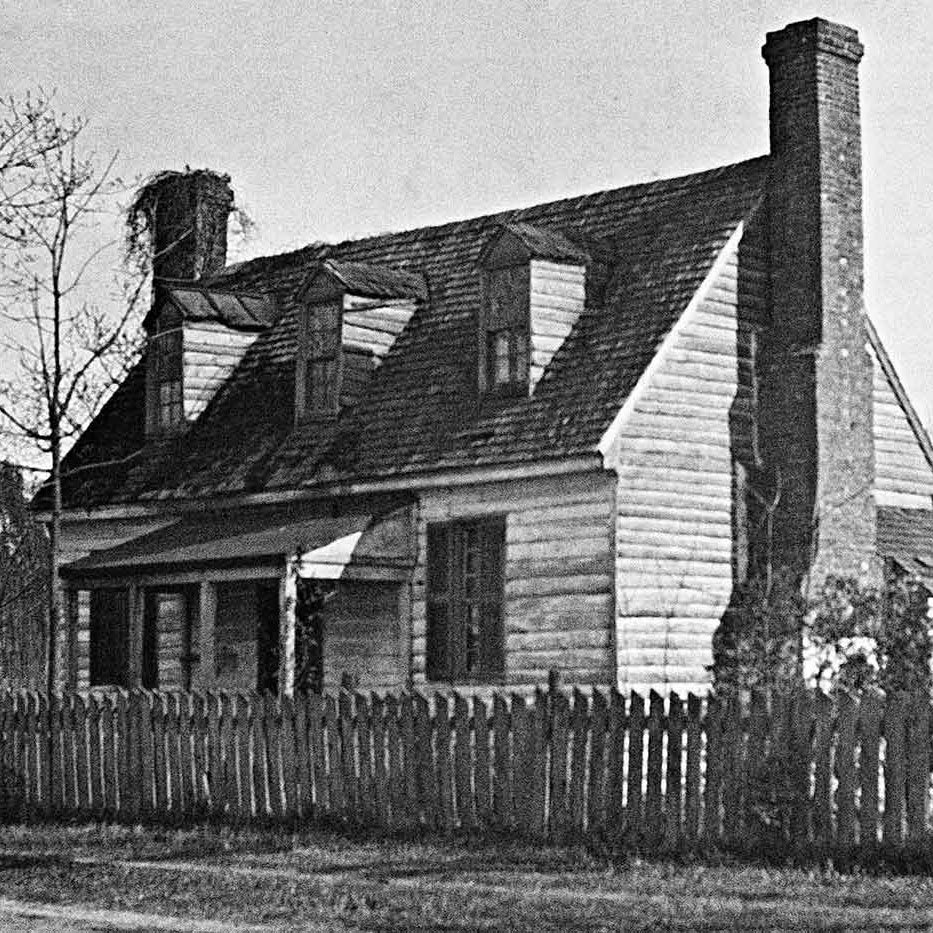
Now that I had my main character, I went searching for slave life images at the "Photo and Prints" section of the American Memory site using the keywords "slave house." Many of the images identified in that search came from the "History of American Buildings Survey" files. These are black and white photographs that work well as illustrations and, since the LOC owns these government documents, copyright is not an issue. I also searched for "slave quarters" and found additional images. I chose several images, saving them to my "Slavery" folder. I suggest that you save the images on the main LOC pages as you find them. The LOC often offers higher resolution versions of their images, but the lower resolution ones work well in Power Point. The higher resolution images look quite nice but increase the size of a presentation significantly. For example, using the highest resolution of each image I found resulted in a 35-megabyte presentation, while using the lowest resolution images resulted in a 4-megabyte presentation.
Next, I wanted some more "captivating" images, so I visited http://gropius.lib.virginia.edu/Slavery/index.html. This is "The Atlantic Slave Trade and Slave Life in the Americas: A Visual Record" site at the University of Virginia Librarya wonderful resource for teachers and students. One word of caution, there are several frank and disturbing images posted on this site. Some of them are quite accurate in portraying brutal aspects of slavery, so I would strongly suggest that you explore the site before asking younger students to do so. I browsed through the site and discovered many images that would marry well with Henson's text.
My last stop was the Colonial Williamsburg Foundation's web site. In the "History Explorer" section at http://www.history.org/Almanack/almanack.cfm I found many valuable references about all aspects of colonial life including biographies, building histories, timelines, and other resources. I selected the "Colonial Life" link and then clicked on "African-American Experience." There I found many textual resources and several images that I saved in my "Slavery" folder. I checked the copyright restrictions information on the site and discovered that as long as I credit the Colonial Williamsburg Foundation I can use the images for educational purposes.
Putting It All Together
Having
assembled all of my resources in one folder, it was time to assemble the presentation.
I launched Power Point on my PC and began a blank presentation. I decided to
use my Colonial Williamsburg background for all of the slides I created. I created
the first slide, and then in "Slide Sorter View" copied the one slide
that had the background in place and pasted a dozen of them into the window.
The rest of the creation was straightforward. I created a title, added a neat
slavery image from American Memory site, and then proceeded to the remaining
pages. I copied parts of the text from the Word document as needed and added
images as I went along, finishing with a "Credits" page. Of course,
I saved my presentation in my "Slavery" folder often as I worked.
Now for the artistic touches! I created transitions between slides and set them to advance automatically. I chose "Dissolve" as it looks professional and using one transition throughout adds continuity to the final product. Of course, I animated the images also using "Dissolve" with automated timings. I pasted text from the Word document into text boxes and then animated them using "Dissolve," but chose "Introduce text" "by word" rather than "All at once." This gives the effect of "writing" the text across the screen. The trick is to set up the automatic timing to allow enough time for the text to completely appear and then remain on the screen long enough for slower readers. I found that 30 seconds works well.
The visuals were completed, but the presentation still needed some sound. I had a couple of options. I could: 1) record someone reading the text as a narration; 2) import a sound file that I found on the web; 3) have the slide show play a track from an audio CD; or 4) extract a track from a CD and import it as a file. Since many computers (both Mac and PC models) now come with decent sound cards, connecting a microphone is pretty easy. If you have a microphone just choose "Insert" "Movies and Sounds" "Record Sound" and follow the onscreen prompts. Of course, some practice is a good idea. Timing the length of the narration so that it matches the text, as it appears onscreen is also important. The disadvantage of playing a CD track is that the CD must be in the drive for the user to hear it. That may not be convenient for Power Point presentations that travel to various computers. I chose to use iTunes on my Mac to extract a track of a nice African American song from a Colonial Williamsburg CD. Other options are "Toast Audio Extractor", part of Toast CD burning software, or any application that allows you to extract sound files. Unfortunately, iTunes extracted a full stereo version of the song, which was about 9 megabytes in size. By opening the file in QuickTime Pro and exporting it as an .aiff file, and choosing "Options," I was able to export it as a mono file and compress it. This process reduced the file to about 1 megabyte. I added the sound file and "Volia," I was done or so I thought.
Completing and Saving the Presentation
My presentation was still almost four megabytes in size, which is too large for placement on and downloading from the Web! I tried saving the presentation as a Web page, but I lost all of my fancy transitions. Frustrated, I moved the presentation from my PC to my Mac G4 with Microsoft Office X and opened it in Power Point. Lo and behold, there was a choice to "Make Movie!" That worked extremely well, but my movie was 45 megabytes! I made a mental note that that option would be great for sharing my presentations on a CDa format even users without Power Point could use.
Realizing that I had to create a smaller size movie, I returned to Power Point and discovered that I could choose to save my presentation as a series of jpeg images. I chose "File, Save As, and "Save as type: JPEG" and Power Point neatly created a folder on my desktop with all the slides sequentially numbered. Then using QuickTime Pro, I chose "File," "Open Image Sequence" and navigated to the first image in the new folder. QuickTime requested that I choose timing for each slide so I chose "5 seconds per frame" and QuickTime created a movie clip that was 1 minute and 44 seconds long. Since many users will not have Power Point and QuickTime is free, the QuickTime movie will work well for distributing the presentation. Also, users can pause the movie at any time to read the text more carefully or to spend additional time viewing the images.
Knowing
the exact length of the movie (by simply playing it and watching the time counter)
is important for the next step, which is adding sound! I opened the QuickTime
file that I had created from the CD track, did an "Edit, Select All, Copy"
and then opened the presentation movie. I chose "Edit, Add Scaled"
and QuickTime pasted the sound track into the movie. By using "Add Scaled,"
QuickTime stretched the sound file to exactly fit the video file. This worked
well in this project since I knew that the movie file was only a few seconds
longer than the sound file. If there were a big difference in sizes, the sound
would become too distorted to use. Now I had a QuickTime movie of my presentation
that was 1.4 megabytes in size! If I trim it down just a little bit more, I
can copy it onto a floppy diskette and share it with colleagues, students and
parents. Once you have been through the process a few times, you will realize
that this is something that most students can accomplish with some basic training
and be able to publish their work on diskette or even on the web!
So I've gone from a giant 35 megabyte Power Point presentation to a small QuickTime movie that can be easily shared. One of the positive attributes of this process is for students to learn the art of editing. By requiring their project to fit on a floppy (or whatever medium you choose), students are "forced" to pare down all the fancy materials and get right to the content.
The Final Product
The technique I've described here works well with any project that attempts
to connect students with primary sources. It's engaging and reinforces many
technology skills that new state standards frequently require students to master.
It also opens up a world of primary source documents to students who, using
more traditional means, would never have access to them.
Click on the image below to play my Josiah
Henson movie! In order to view it you will need the free QuickTime Player.
This article was written by Dale Van Eck, Associate Producer Education Technology, The Colonial Williamsburg Foundation.

Shop Online
Tour the Town Online
Kids Zone: Online games & activities